October 1, 2026
How to Generate Synthetic Data
When building any kind of software product, or a compelling demo, you almost always find yourself needing test or sample data. The kind of data that allows you to make sure the system works as designed, or that shows the software in the best light. For very simple use cases you can get by with a table of data made up in Excel or even typed in manually. But to ensure that your product works in production and not just in development, or to have your demo show a user interface that looks real enough to make sense while keeping the actual data secure, you eventually need a solution for synthetic data generation. Alchemy is our synthetic data generation API. It's designed to be consistent, to cover a significant cross section of the data types you actually use, and to be as realistic as possible when generating real world elements. Addresses, vehicles and people are all taken from the real places you're trying to model, alongside a flexible approach to generating primitive data types within a wide range of constraints.
How can you try Alchemy before writing any code?
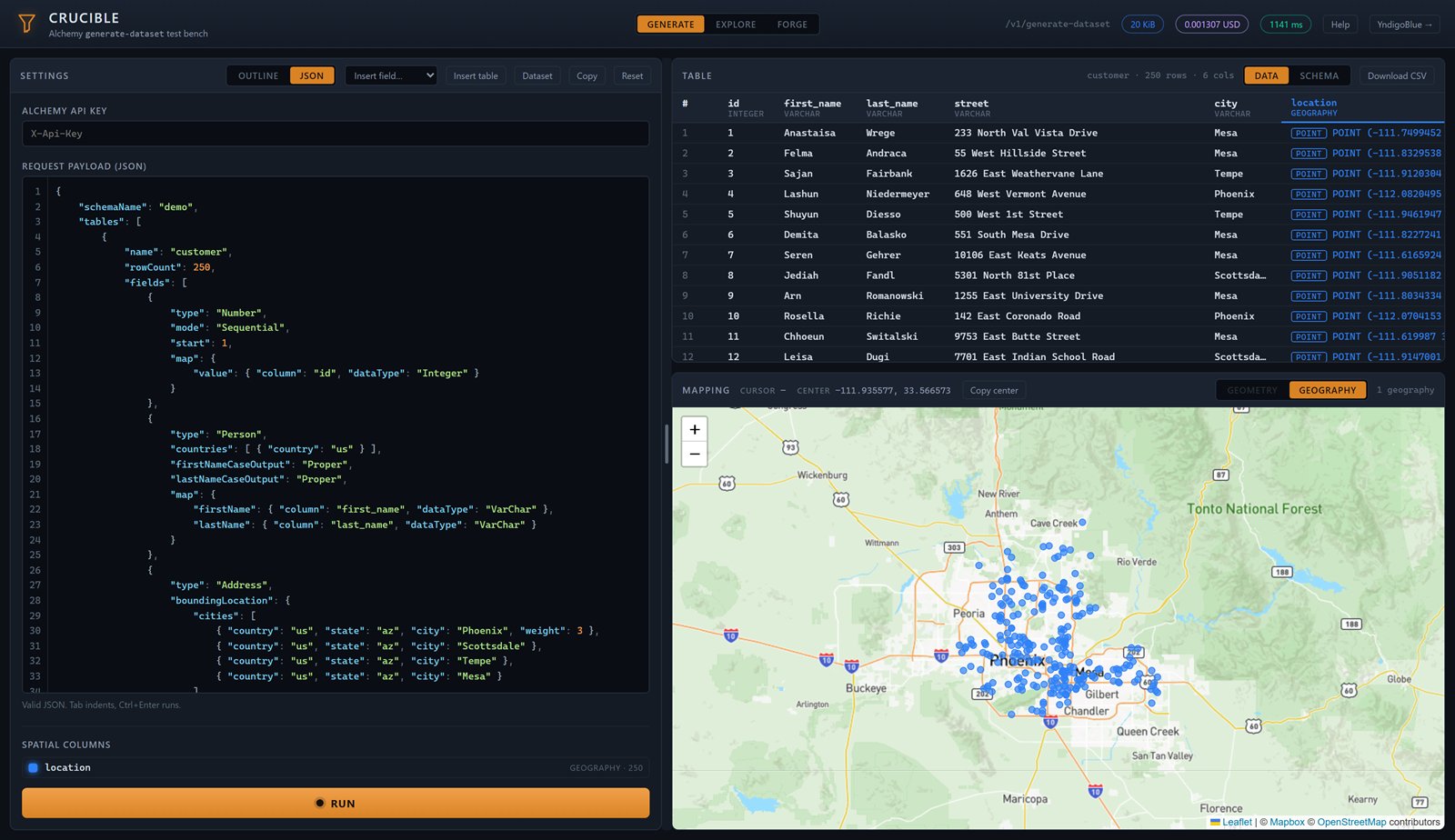
The quickest way to see what Alchemy generates is Crucible, our test bench for the API, which runs on your own API key. You write a request in the JSON editor, or build it up field by field in the outline view, and when you run it the generated rows appear next to it with the data type of each column. The schema tab shows the schema that was generated. If the request has a spatial column, it's drawn on a map underneath the data, which makes it obvious straight away whether the locations are where you asked for them. The request in the screenshot below generates customers with US names and addresses in four Arizona cities, weighted toward Phoenix.
Once a request does what you want, you send the same JSON to POST /v1/generate-dataset with your API key in the X-Api-Key header, either from your own code or with Foundry, which is shown later on. The options for writing requests are described in Building a Request.
How are the values in a row kept consistent?
In the Crucible example, the street, the city and the point on the map in each row all belong to the same address. The Address field picks an address that actually exists and gives you its parts, so the house number really is on that street and the coordinates are the position of that house. You don't get that by generating a house number, a street and a city as separate fields, because they'd combine into addresses that don't exist, and that shows up as soon as anyone puts the data on a map.
The Person field keeps a person's details consistent in the same way. First and middle names match the sex generated for that row, and the names in a row all come from the same country even when your request allows more than one. In countries where last names have separate male and female forms, the last name uses the matching form. The date of birth belongs to the same person as the names, and identifiers can be built from the row's own values, so an ID contains parts of that person's name and date of birth instead of something unrelated.
The Vehicle field picks a real vehicle configuration and writes out its make, model, model year, engine, transmission and fuel economy. It also builds a VIN, assigns a state of registration and writes a license plate in that state's format. Because the VIN starts with the manufacturer identifier for the make in the same row, and the plate matches the registration state, the vehicle columns agree with each other. You can narrow down the vehicles with filters like modelYearMin, makes and powertrains, which is how you'd generate an all-electric fleet.
The Flight field generates a trip between two airports that exist, with an operating airline and a flight number in that airline's code. Departure and arrival times are written in each airport's local time zone. The flight time is worked out from the great-circle distance between the airports at an average speed, plus an allowance for time on the ground, and you can change both with averageSpeedKilometersPerHour and groundMinutes. You can also write the route out as a line for a spatial column, as in this example of flights from the UK to the US.
{
  "type": "Flight",
  "departure": { "countries": [{ "country": "gb" }], "types": ["LargeAirport"] },
  "arrival": { "countries": [{ "country": "us" }], "types": ["LargeAirport"] },
  "map": {
    "flightNumber": { "column": "flight", "dataType": "VarChar" },
    "departureAirport": { "column": "origin", "dataType": "Char" },
    "arrivalAirport": { "column": "destination", "dataType": "Char" },
    "departureTimestamp": { "column": "departs", "dataType": "Timestamp" },
    "arrivalTimestamp": { "column": "arrives", "dataType": "Timestamp" },
    "route": { "column": "route", "dataType": "Geometry" }
  }
}
How are tables related to each other?
Foreign keys come from the Reference field, which takes its value from a column of a table generated earlier in the same request. The values it writes are copied from rows that were actually generated, so there are no orphaned rows when you join the tables. Because the values have to exist before they can be copied, the referenced table needs to come before the referencing one in the tables list. Here's a vehicle table you could add to the customer request in the screenshot, holding the vehicles the customers own.
{
  "name": "vehicle",
  "rowCount": 400,
  "primaryKey": ["vehicle_id"],
  "fields": [
    {
      "type": "Number",
      "mode": "Sequential",
      "start": 1,
      "map": { "value": { "column": "vehicle_id", "dataType": "Integer" } }
    },
    {
      "type": "Reference",
      "targetTable": "customer",
      "targetColumn": "id",
      "rule": "Random",
      "map": { "value": { "column": "customer_id", "dataType": "Integer" } }
    },
    {
      "type": "Vehicle",
      "modelYearMin": 2018,
      "map": {
        "vin": { "column": "vin", "dataType": "VarChar" },
        "modelYear": { "column": "model_year", "dataType": "Integer" },
        "make": { "column": "make", "dataType": "VarChar" },
        "model": { "column": "model", "dataType": "VarChar" },
        "licensePlate": { "column": "plate", "dataType": "VarChar" },
        "registrationState": { "column": "registered_in", "dataType": "VarChar" }
      }
    }
  ]
}
The rule property controls how the references are spread across the referenced table. With Random, each vehicle picks a customer at random, so some customers end up with a few vehicles and some with none, which is how most many-to-one relationships look in practice. Distributed uses each customer the same number of times, give or take one, and Unique uses each customer no more than once, which gives you a one-to-one relationship. The two clustered rules use a standard deviation to control how much the number of references varies around the average, and ClusteredDistributed also guarantees that each customer is referenced at least once. You can also have a Reference field copy other columns from the row it points at, for example the customer's city into the vehicle table. Many-to-many relationships use a link table instead, which is covered in Link Tables.
Each Reference field adds a foreign key to the generated schema, and a table with a primaryKey gets a primary key, so the data comes with its constraints already defined and you don't have to work out the relationships between a set of loose files afterward.
How are derived values generated?
The Calculated field works out a value from other columns in the same row. Each calculation is a tree of columns, literal values and operations, and since the input to an operation can be another operation, you build up more complex expressions by nesting them. There are operations for arithmetic, text, dates and times, geometry and conditional logic, so you can calculate things like a line total from a quantity and a unit price. The example below builds an email address from the person's own name.
[
  {
    "type": "Person",
    "countries": [{ "country": "us" }],
    "map": {
      "firstName": { "column": "first_name", "dataType": "VarChar" },
      "lastName": { "column": "last_name", "dataType": "VarChar" }
    }
  },
  {
    "type": "Calculated",
    "calculation": {
      "operation": "Concat",
      "inputs": [
        {
          "operation": "Slug",
          "separator": ".",
          "inputs": [{ "operation": "Template", "template": "{first_name} {last_name}" }]
        },
        { "literal": "@example.com" }
      ]
    },
    "map": { "value": { "column": "email", "dataType": "VarChar" } }
  }
]
Template puts the two names together and Slug turns the result into a lower-case value with a period between the names, before Concat adds the domain at the end. Each email address comes from the name in its own row, as you can see in the first few rows of the output.
| first_name | last_name | |
|---|---|---|
| Naida | Krajicek | naida.krajicek@example.com |
| Renaye | Elo | renaye.elo@example.com |
| Felicha | Declercq | felicha.declercq@example.com |
If a column only exists to feed a calculation, you can mark it "hidden": true. It's still generated and the calculation can use it, but it's left out of the output and the schema. So if a table only needs a full name, you can generate the first and last names as hidden columns and write out just the combined value.
What about location data?
Locations come from Address, Location or Geospatial, and which one you want depends on what the column represents. Address gives you a street address and its point, as described above. Location gives you a place such as a city, county, state or postal area, with its name and its boundary, so a row that reads Irvine, Orange and CA is a city that really is in Orange County, California. Geospatial doesn't pick a place at all. It generates coordinates as points, lines, polygons and their multi-part forms, in well-known text for a Geometry or Geography column, which suits something like the positions of a network of sensors. You can have it generate inside a rectangle, a circle around a center point, a polygon you supply, or one or more named places, so you could put all of the sensors inside one particular city.
What about the simpler data types?
Most of the columns in a typical table are plain numbers, dates, flags and text rather than addresses or vehicles, and they need as much care as the richer fields if the data is going to look right. The Number field can count up sequentially, spread whole or fractional numbers evenly across a range, pick from a fixed list, or cluster values around an average with a standard deviation, which is what you want for something like body weights. Date, Time, DateTime and Timestamp have the same modes, and Timestamp also gives each row a time zone with the correct UTC offset for that date, including daylight saving time. Interval generates durations rather than points in time, such as how long a support call lasted. Dates and times can be written in a culture's own format or a custom format string when the column is text.
When a row represents a period, like a hotel booking, two separate date fields won't work because the end can come out earlier than the start. DateRange, TimeRange and DateTimeRange give you a start and an end, with the gap between them set in days, minutes or hours, so the end is never before the start. Here's a booking that checks in at some point in 2025 and stays between one and fourteen nights.
{
  "type": "DateRange",
  "mode": "Random",
  "min": "2025-01-01",
  "max": "2025-12-31",
  "intervalMin": 1,
  "intervalMax": 14,
  "map": {
    "start": { "column": "check_in", "dataType": "Date" },
    "end": { "column": "check_out", "dataType": "Date" }
  }
}
Boolean lets you set the percentage of rows that are true, since real flags are rarely an even split, and it can write labels such as Y and N into a text column. String generates random characters, dictionary words, sentences or values from a list, in a choice of languages. Name gives you a single first or last name, chosen in proportion to how common it is, for a column like the signatory on a contract. For keys and reference codes, Identifier generates GUIDs, ULIDs, version 7 UUIDs or values built from a pattern like ABC-0001-X.
Format is for values the receiving system validates, such as a credit card number that has to pass a Luhn check. It generates numbers in published formats with the correct check digits, so they get through validation on import, but they're valid in form only and don't belong to real cards, accounts or people. Most of these fields also let you set a percentage of rows that are null, so your code has to handle empty values the same way it will with real data.
What does the response contain?
If you set Accept: application/x-csvx, the response is a .csvx package, which is a ZIP file holding a manifest.json, a schema file and a CSV file for each table. The schema file describes the generated tables in a format that isn't tied to any database, with their columns, data types, primary keys and the foreign keys between them, and you can have it written as JSON, XML or YAML. The manifest lists the tables along with the settings their CSV files were written with, such as the delimiter and the date formats, so whatever loads the package can read each file exactly as it was written. Without the Accept header the response is JSON instead, containing the same schema and the data for each table.
Because the package describes its own structure, the tables don't need to exist before you load it. Foundry, our command-line tool for working across databases, can call Alchemy and load the result for you. The foundry generate dataset command sends a request from a payload file and saves the package to disk, and foundry import schema builds the schema on any supported database and imports the tables in an order that satisfies the foreign keys.
foundry generate dataset --endpoint https://alchemy.yndigoblue.com \
  --payload customers.json --out customers.csvx

foundry import schema --datasource postgres.json --file customers.csvx --drop
Foundry reads your API key from the ALCHEMY_API_KEY environment variable, and both commands can also be steps in a Foundry run script, which makes generating and loading a fresh dataset part of a deployment. If you're working in a .NET application, the Velocity Framework can build the same schema from the schema file. Both response formats are documented in Reading the Response.
How do you know what a call will cost?
Each generation endpoint has a matching estimate endpoint, POST /v1/estimate-dataset and POST /v1/estimate-table. They take the same request body and validate it, then return the estimated cost, your current balance and whether the balance covers it. Estimates don't generate any data and aren't billed, so they're also a useful way to catch mistakes in a request before you run it. The cost depends on how complex the request is as well as how many rows it asks for, which is why the estimate is worked out from the request itself. In Foundry, adding --estimate to the same command gets you the estimate instead of the data.
foundry generate dataset --endpoint https://alchemy.yndigoblue.com \
  --payload customers.json --estimate
Successful generation responses include their cost in the X-Alchemy-Cost header, and the same amount shows up in your account's usage history. You pay for Alchemy with prepaid credit that never expires, which you can buy directly or have topped up automatically when your balance drops below a threshold. One API key and one balance work across all of the YndigoBlue APIs. The field types and endpoints are all covered in the Alchemy documentation, and pricing is on the Alchemy product page.